
Embarking on your Novastar IPTV journey is incredibly simple, and this comprehensive guide will walk you through exactly how to install Novastar IPTV on all your favorite devices in 2026. Gone are the days of complicated setups and technical headaches; Novastar IPTV is designed for effortless integration, ensuring you can start enjoying thousands of channels and vast on-demand content within minutes. Whether you’re a tech novice or a seasoned streaming enthusiast, our step-by-step instructions will demystify the installation process, making it a breeze to get your Novastar IPTV subscription up and running. From the ever-popular Amazon Firestick to your sleek Smart TV, Android phone, iPhone, or even your PC, we've got you covered. Get ready to unlock a world of unparalleled entertainment, as we show you just how easy it is to buy Novastar IPTV and transform your viewing experience. This guide guarantees a smooth transition to premium, high-definition streaming, making your decision to buy Novastar IPTV an even more rewarding one.
Effortless Novastar IPTV Installation on Amazon Firestick Devices
For millions of users, the Amazon Firestick is the go-to device for streaming, and thankfully, installing your Novastar IPTV subscription on it is remarkably straightforward. First, ensure your Firestick is powered on and connected to the internet. From the Firestick home screen, navigate to the 'Find' section and select 'Search.' Here, you'll want to search for 'Downloader' – a crucial app for sideloading applications not directly available in the Amazon Appstore. Once found, download and install the Downloader app. Before opening it, go to your Firestick Settings > My Fire TV > Developer Options, and enable 'Apps from Unknown Sources.' This step is vital to allow third-party applications like the Novastar IPTV player to be installed. If you don't see 'Developer Options,' go to About > Fire TV Stick, and click on the name seven times to reveal it. This preparation ensures a smooth installation process for your Novastar IPTV service.
Next, open the Downloader app. In the URL field, you will enter the specific download link provided by Novastar IPTV for our dedicated application or a recommended universal IPTV player (e.g., IPTV Smarters Pro, TiviMate). This link is typically found in your Novastar IPTV subscription confirmation email or on our official support page. Carefully type in the URL and click 'Go.' The application file (APK) will begin to download. Once the download is complete, a prompt will appear asking you to install the application. Select 'Install,' and the Firestick will proceed with the installation process. This usually takes just a few moments, showcasing the efficiency of setting up your Novastar IPTV.
After the installation is finished, you’ll have two options: 'Done' or 'Open.' It's recommended to select 'Done' first, which will take you back to the Downloader app. From there, you should delete the APK file to free up space on your Firestick, as it’s no longer needed once the app is installed. Now, navigate back to your Firestick home screen, and you'll find the newly installed Novastar IPTV player (or universal player) under 'Your Apps & Channels.' Launch the application, enter the username and password or M3U URL provided with your Novastar IPTV subscription, and you're all set! You can now start enjoying thousands of live channels and VOD content in stunning 4K quality. This seamless process ensures that when you buy Novastar IPTV, you're just moments away from unparalleled entertainment on your Firestick.
Installing Novastar IPTV on Smart TVs & Android Devices
For users with Smart TVs from brands like Samsung, LG, or any Android-based Smart TV, integrating your Novastar IPTV subscription is a remarkably user-friendly experience. For Android Smart TVs, the process mirrors that of an Android box or phone. Simply navigate to the Google Play Store on your TV, search for a recommended IPTV player such as 'IPTV Smarters Pro,' 'TiviMate,' or our dedicated Novastar IPTV application if available. Download and install the app. Once installed, launch the application and you will be prompted to enter your login details, which typically include a username, password, or an M3U URL, all provided when you purchase your Novastar IPTV subscription. This direct app integration makes accessing your premium content incredibly convenient, transforming your living room into a cinematic hub.
For Samsung and LG Smart TVs, which often run on proprietary operating systems (Tizen for Samsung, webOS for LG), the process involves downloading an compatible IPTV player from their respective app stores. Popular options include 'Smart IPTV' (SIPTV) or 'GSE Smart IPTV.' Once you've downloaded and installed your chosen player, you'll typically be given a MAC address for your TV within the app. You will then need to visit the app's official website on a computer or smartphone, enter your TV's MAC address, and upload the M3U URL provided with your Novastar IPTV subscription. After saving the changes on the website, simply restart the IPTV player on your TV, and your channels and VOD library will populate. This method ensures that even without an Android OS, you can seamlessly enjoy the full Novastar IPTV experience.
No matter your Smart TV brand, the goal is to get a compatible IPTV player installed and configured with your Novastar IPTV subscription credentials. The ease of setup on these large-screen devices truly enhances the viewing experience, allowing you to control your entertainment with your TV remote. The robust performance of Novastar IPTV on these platforms means you can stream in breathtaking 4K and Full HD without a hitch. The ability to directly integrate Novastar IPTV onto your primary viewing device without additional hardware makes the decision to buy Novastar IPTV an even more appealing one, simplifying your entertainment setup and offering immediate access to an expansive world of content. Embrace the future of television with Novastar IPTV on your Smart TV.
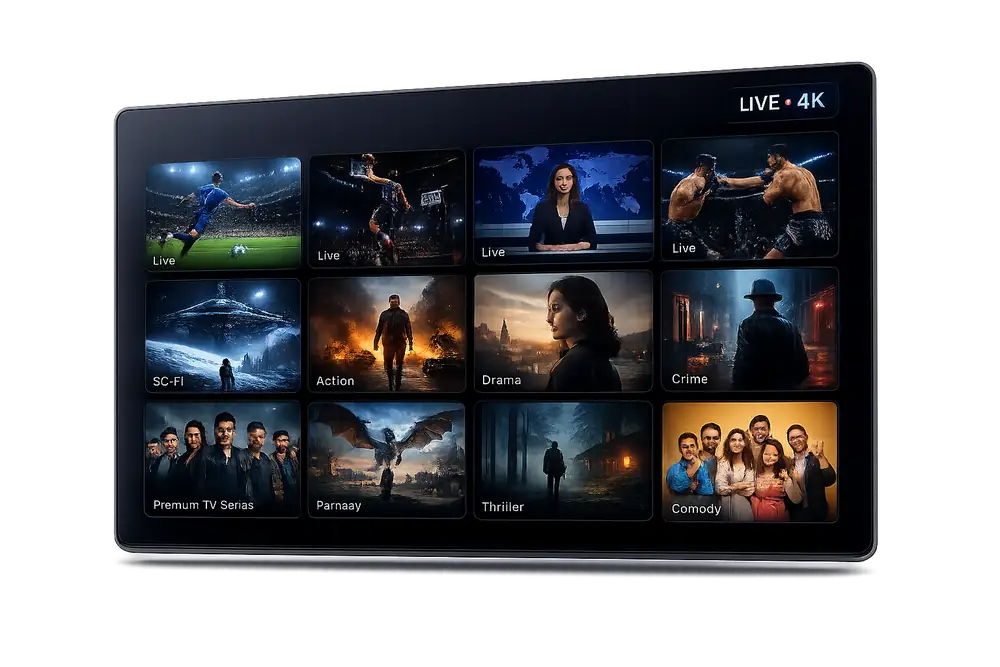
Novastar IPTV on iOS, PC, MAG Boxes & Other Devices
The versatility of Novastar IPTV extends far beyond Firestick and Smart TVs, ensuring that your Novastar IPTV subscription can be enjoyed across virtually any device you own. For Apple users, including iPhones, iPads, and Apple TV (via specific applications), the process is straightforward. Head to the App Store and download a reputable IPTV player like 'GSE Smart IPTV' or 'iPlayTV.' Once installed, open the app, and you’ll find options to add a new playlist or user. Input your M3U URL or Xtream Codes API details, which are part of your Novastar IPTV subscription package. The app will then load your channels and VOD, bringing a world of entertainment to your iOS ecosystem. The intuitive interface and crisp display of Apple devices perfectly complement the high-definition streams from Novastar IPTV.
PC users, whether running Windows or macOS, also have multiple convenient options to access their Novastar IPTV subscription. You can download and install popular media players like 'VLC Media Player' or dedicated IPTV clients such as 'Kodi' (with an IPTV Simple Client add-on) or 'IPTV Smarters Pro' for desktop. After installation, simply open the chosen player and add your M3U URL or login credentials. For a more direct approach, some users may find a web player link provided by Novastar IPTV, allowing them to stream directly from a browser without any software installation. This flexibility ensures that you can enjoy Novastar IPTV on your computer for work, leisure, or as a secondary viewing screen, making the decision to buy Novastar IPTV incredibly practical for multi-device households.
Furthermore, for enthusiasts of dedicated set-top boxes, Novastar IPTV offers full compatibility with MAG devices (e.g., MAG 250, MAG 322, MAG 420). The setup process for MAG boxes typically involves navigating to the 'System settings,' then 'Servers,' and entering the portal URL provided by Novastar IPTV. After saving and rebooting, your MAG box will load the Novastar IPTV portal, giving you access to the full channel lineup and VOD. This robust support for a wide range of devices underscores Novastar IPTV’s commitment to accessibility and user convenience, ensuring that no matter your preferred viewing platform, a seamless, high-quality entertainment experience is guaranteed. When you buy Novastar IPTV, you're investing in universal access to premium content, truly making it the ultimate entertainment solution for 2026 and beyond.
Novastar IPTV Troubleshooting Tips for a Flawless Experience
While installing your Novastar IPTV subscription is generally a smooth process, occasional minor hiccups can occur. Rest assured, most common issues are easily resolved, ensuring your premium viewing experience remains uninterrupted. If you encounter buffering, the first step is to check your internet connection speed. Novastar IPTV recommends a stable connection of at least 20-30 Mbps for optimal 4K streaming. A slow or inconsistent Wi-Fi signal can often be the culprit. Try restarting your router and modem, or consider a wired Ethernet connection for your streaming device if possible, especially for critical viewing like live sports. Clearing the cache of your IPTV application can also often resolve performance issues, as accumulated data can sometimes slow down playback. This simple step can frequently restore the smooth performance expected from your Novastar IPTV subscription.
Another common issue users might face is channels not loading or showing an error message. In this scenario, verify that your Novastar IPTV subscription credentials (M3U URL, username, password) are correctly entered into your IPTV player. Even a single typo can prevent access. If the details are correct, try refreshing your playlist within the application or restarting the app itself. Sometimes, a quick server refresh on our end can resolve these issues, so contacting Novastar IPTV customer support is always a good option if problems persist. Ensure your device's software and your IPTV player application are updated to their latest versions, as updates often include bug fixes and performance enhancements that benefit your Novastar IPTV experience.
If you experience issues with specific channels, it could be a temporary server issue or a georestriction. While Novastar IPTV offers a global selection, occasional regional content limitations might apply. For persistent issues across multiple channels or devices, a complete reinstallation of the IPTV application, followed by re-entering your Novastar IPTV subscription details, can often provide a fresh start and resolve underlying conflicts. Our dedicated customer support team is always ready to assist with any technical challenges, offering expert guidance to ensure your Novastar IPTV journey is seamless and enjoyable. Don't let minor technical glitches deter you from the incredible entertainment value of Novastar IPTV; with these simple troubleshooting steps and our support, you'll be back to flawless streaming in no time. When you buy Novastar IPTV, you also gain access to a reliable support system.
Congratulations! You now possess the knowledge to effortlessly install your Novastar IPTV subscription on virtually any device, from your Amazon Firestick to your Smart TV, Android, iOS, or PC. The ease of setup is just one of the many reasons why Novastar IPTV stands out as the premier choice for premium entertainment in 2026. Don't let complicated installations hold you back from experiencing a world of over 20,000 live channels and 50,000+ VOD titles in breathtaking 4K quality. It's time to take control of your entertainment destiny. Your flawless, high-definition streaming journey is just a few clicks away. Act now to buy Novastar IPTV and unlock an unparalleled universe of content. Visit our website today to secure your Novastar IPTV subscription and begin enjoying the future of television, meticulously tailored for your ultimate viewing pleasure!